EchoFill
If you've applied to more than a handful of jobs this year, you know the routine. You find a role, click Apply, and land on a Workday portal that wants an account, your résumé, and then the same forty questions you answered yesterday for a different company. Name, address, phone, every job you've held with exact months, every degree, "How did you hear about us?", work authorization, sponsorship, relocation. Then you do it again tomorrow.
I've been through more job searches than I'd like, and a lot of them ran through Workday. First name, last name, phone, email, address, then a description for every role I'd held. None of it was hard. It was just slow. On a lot of applications, more than half my time went to typing details I'd already typed somewhere else, and that adds up fast when you're applying to several jobs in a day. My wife has complained about the exact same thing. That's exactly the kind of time EchoFill was built to give back.
This guide covers why Workday works this way, which parts you can safely autofill, which parts you shouldn't, and how to set things up once so every future application takes minutes instead of half an hour.
Why Workday makes you start from zero every time
Workday isn't one website. Each employer runs its own copy, usually at an address like company.wd5.myworkdayjobs.com. Your account, your uploaded résumé and your answers live inside that one company's copy. Apply somewhere else and you're a stranger again, even though the pages look identical.
The "Autofill with résumé" button doesn't save you much either. It reads your résumé file and guesses which text goes where. Job titles land in the company field, months go missing, bullet points get merged into one paragraph, and you spend as long fixing the guesses as you would have spent typing.
So the problem isn't really typing speed. It's that the same answers have to be entered into dozens of separate systems that can't talk to each other. Your browser has to remember them, because nobody else will.
What Chrome's built-in autofill does (and doesn't) cover
Chrome will fill your name, email, phone and address if the fields are labeled in a standard way. On Workday that covers roughly the first screen. Everything after it is out of reach:
| Workday step | Chrome autofill | Remembered answers (EchoFill) |
|---|---|---|
| My Information (name, address, phone) | Mostly | Yes |
| "How did you hear about us?" and other dropdowns | No | Yes, including Workday's searchable menus |
| My Experience (jobs, dates, descriptions) | No | Yes, once recorded |
| Education | No | Yes |
| Application Questions (authorization, sponsorship, relocation) | No | Yes, but review each one |
| Voluntary Disclosures / Self Identify | No | We suggest you answer these yourself |
| Résumé upload | No | No: browsers don't let extensions attach files |
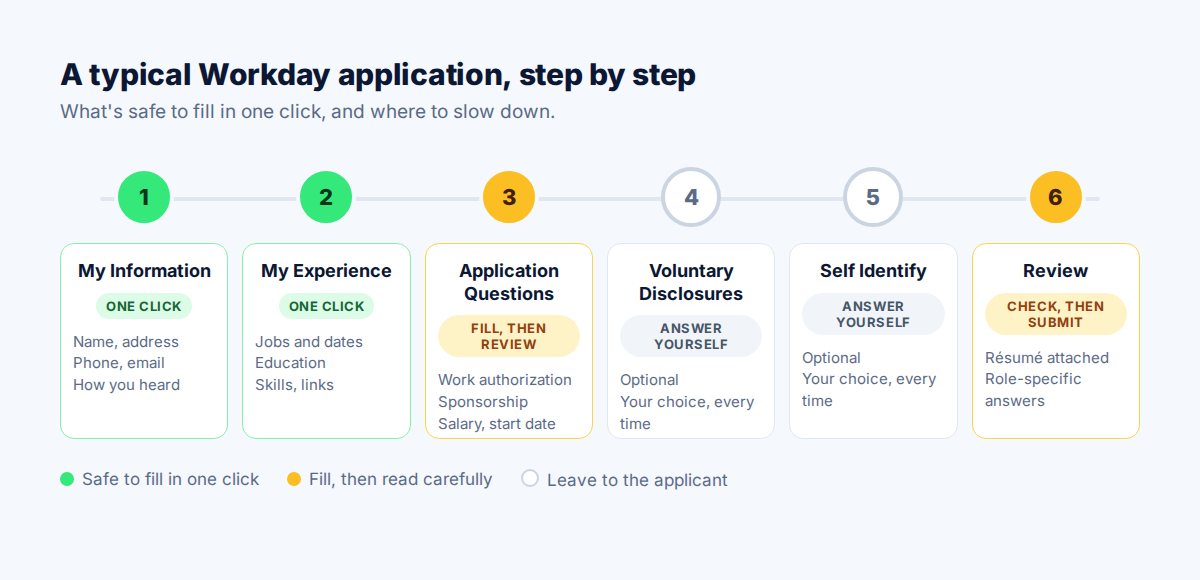
The three parts you should never autofill blindly
Speed matters, but a wrong answer on a job application costs more than five minutes of typing. Before you automate anything, know where to slow down:
- Legal attestations. Questions like "Are you legally authorized to work in this country?" and "Will you now or in the future require sponsorship?" usually have the same answer every time, so autofill is fine, but read each one. Companies phrase them differently, and a question that is worded in the negative can flip what "Yes" means.
- Voluntary self-identification. Gender, race and ethnicity, veteran status and disability questions are optional and private. Decide each time whether you want to answer, rather than letting a tool decide for you.
- Anything role-specific. Salary expectations, start date, "Why do you want to work here?" and portfolio links change from job to job. Leave them blank in your saved answers so you're forced to think about them.
The same goes for experience write-ups when a role is unusual. A saved description of your past jobs is a great starting point, but if the posting asks for something specific, copying in the same text won't make you stand out. That part is your call, and it should be. Let the tool handle the admin so you have time for the answers that actually get you noticed.
How to fill Workday applications in one click with EchoFill
EchoFill is a free Chrome extension that remembers what you type into a form and fills it back in next time. It works on what's already on the page, in your browser, so there's no résumé parsing and nothing is sent to an AI service.
- Fill one application by hand, carefully. Pick a Workday application you were going to submit anyway and fill in every step. Take your time: these become your saved answers.
- Record each step. On each page, before you click Save and Continue, click the EchoFill button → Record this form. Name the profile something like "Workday standard answers". Leave Fill automatically next time checked if you want that portal filled as soon as a page opens. EchoFill saves text fields, dropdown choices (including Workday's searchable lists), checkboxes and radio buttons, and it never saves passwords. Skip recording the Voluntary Disclosures and Self Identify steps so those always stay your call.
- On the next company's Workday, click Autofill. Open the new application, click EchoFill → Autofill on each step, and pick your Workday profile. Fields are matched by their labels, and Workday's standard fields use the same labels at every company, so "Legal Name – First Name" finds your first name even though it's a completely different site.
- Review, adjust, submit. Check the attestation questions, answer the self-identification questions yourself, and update anything role-specific. If something filled wrong, one click on Undo restores the page.
Here's what it looked like when I used it on a real Workday application. When I opened a page with fields I'd filled before, EchoFill filled them in as soon as the page loaded. The biggest time saver wasn't my name and address. It was the work history: every role over the years, each with a description, which is the part that takes longest to type. Where it fell short was tailored answers. For roles that were a bit unusual, the same saved text wasn't the best answer, and I rewrote it by hand. My wife uses it for her applications now too, and she likes it a lot. Each fill only saves a few minutes, but across dozens of applications that's hours back for the parts that matter.
Keep one profile per "version" of you
If you're applying to two kinds of roles, say product management and operations, keep two profiles with different summaries, titles and answers. The free plan includes three profiles, which covers most job searches. If you need more, Pro removes the limit.
When a field doesn't fill
Workday occasionally changes how a particular field is built. If one stays empty, type it once and record the step again with Update. EchoFill keeps your other answers and adds the new one.
A quick checklist before you hit Submit
- Your name and contact details match your résumé exactly
- Job dates are in the right format (Workday usually wants month and year)
- Attestation questions say what you mean, especially any worded in the negative
- Self-identification answered the way you chose
- Salary, start date and cover letter fields updated for this role
- The right résumé file is attached (EchoFill can't attach files for you)
Frequently asked questions
Is it safe to use an autofill extension on job applications?
It depends on where your data goes. Many AI job tools upload your résumé and answers to their servers to generate responses. EchoFill stores your answers only in your browser on your own computer. There's no EchoFill account and no server copy. You can read exactly what it stores in our privacy policy.
Will autofilling get my application flagged?
Workday sees the same thing it sees when you type: values in fields. EchoFill doesn't submit anything for you, and it doesn't click through pages on its own. You still review and submit every application yourself.
Does EchoFill work on Greenhouse, Lever and iCIMS too?
EchoFill isn't tied to a list of supported sites. It matches fields by their labels, so the same approach applies: record a step once on each portal, then check the first fill before you rely on it. In my experience the limit is less about the portal and more about the question. Standard details fill easily anywhere. Answers that need tailoring to one specific role still need you.
Do I need to pay for this?
No. The free plan has unlimited fills and three saved profiles. Pro ($2.99/month, $19.99/year or $29.99 once) adds unlimited profiles and fills fields on sites you've never recorded by understanding what each field asks for.
One short email when we publish a new guide. No spam, unsubscribe anytime.