EchoFill
You upload your resume. The page thinks for a second, then shows you a form with your name split wrong, a job title sitting in the company box, and three of your five jobs missing. So you fix it field by field and type out the rest. Tomorrow you do it again on another company's site.
The short answer: job applications make you re-enter your resume because each employer's applicant tracking system stores your history as separate, searchable fields, and the "upload your resume" step only guesses at what goes where. Nothing carries over from one company to the next. You can't change that, but you can get a cleaner parse and stop typing the same answers twice.
We've been there. On our own job searches, many of them on Workday, retyping a name, contact details, an address and a description for every past role took more than half the time on a lot of applications.
Below: why the form asks twice, what trips up the parser, and three ways to stop retyping, one of which uses no AI and uploads nothing.
Why do job applications make you re-enter your resume?
A resume is a document for people. An application is a database for software. Most employers run an applicant tracking system (ATS) such as Workday, Greenhouse, Lever, iCIMS or Taleo, and recruiters filter it by fields: job title, employer, dates, degree, location. You can't filter a PDF. You can filter fields.
A few other reasons, none of them about you:
- Every employer has its own copy. Your profile on one company's Workday site doesn't follow you to the next company, even when the pages look the same.
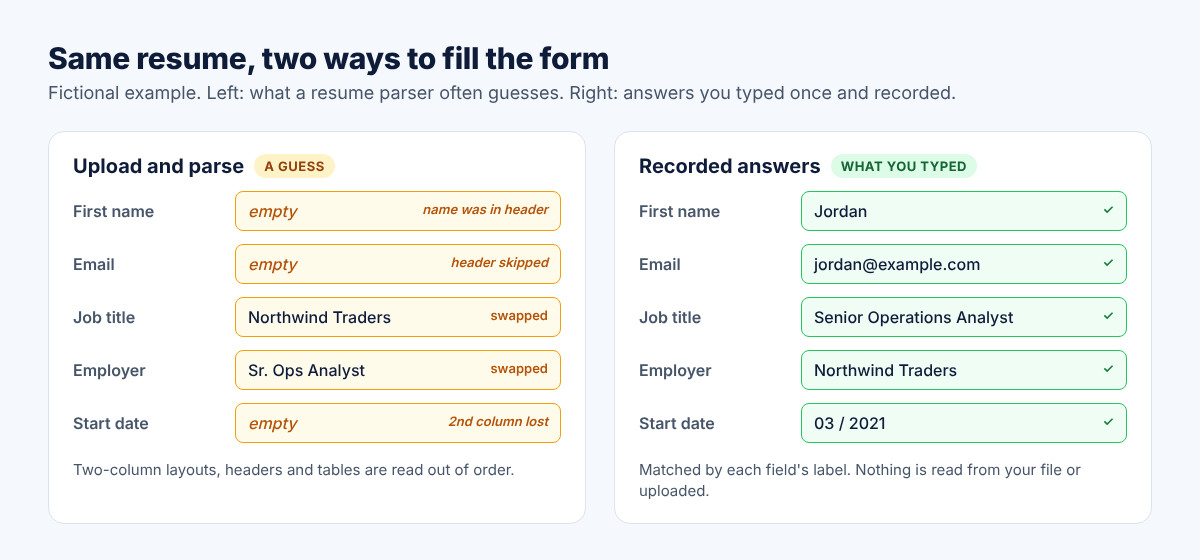
- Parsing is a guess. The upload step reads your file and guesses which text belongs in which box. When it guesses wrong, you're asked to fix it.
- Some questions aren't on any resume. Work authorization, sponsorship, "How did you hear about us?", your start date and the voluntary self-identification questions have to be asked directly.
Jobscan points out that recruiters often search for skills and keywords to narrow the pool before they look at a single resume, and the typed fields help those searches. So "see resume" in a text box is a bad idea, however tempting it is at 11pm.
What does the resume parser get wrong?
Mostly anything that isn't plain, single-column text in the usual order. Greenhouse's help center lists the common causes in its article on an unsuccessful resume parse:
| What's in your resume | What tends to happen |
|---|---|
| Name and contact details in the header, footer or a text box | Name, email or phone come through empty |
| Columns, tables or text boxes | Text is read out of order or skipped |
| Saved as an image, or a scanned PDF | Nothing parses |
| A file larger than 2.5 MB | The parser can't read it at all |
| Shortened titles like "Sr. Account Exec" | The title is misread or dropped |
| Letters spaced out for style | Not read as words |
| Employer names without Inc., Co. or LLC | The company may be missed |
The partial parse is the sneaky one. Some boxes fill and some don't, and the ones that did fill can still be wrong. Greenhouse's own advice for a partial parse is that the fields need to be "manually corrected and verified."
Three ways to stop retyping your resume
You can't change how an employer sets up its system. You can change how much typing each application costs you.
1. Make your resume easier to parse
One column. Standard headings such as "Experience", "Education" and "Skills". Contact details in the body, not the header. Full job titles. A .docx or a text-based PDF well under 2.5 MB. It won't make every parse perfect, but there's less to fix afterwards.
2. Keep one "source of truth" file
A plain text file with each employer's exact name, your exact titles, start and end months, your degree and school, and a short description of each role. When a form asks, copy from it instead of rewording from memory. Your dates and titles then match on every application, which matters if a background check compares them later.
3. Let your browser fill in your own answers
Fill one application carefully, once, and have those answers filled back in on the next one. That's the job we built EchoFill for. It doesn't read your resume. It records what you typed into the form and fills fields with matching labels on the next application, in your browser, with nothing uploaded and no AI involved.
How to autofill job applications from your own answers
- Fill one application by hand. Pick a posting you were going to apply to anyway and fill in every field you can, carefully. These become your saved answers.
- Record each page. Before you click Next, click the EchoFill button, then Record this form. Give the profile a clear name like "Job applications".
- On the next application, click Autofill. EchoFill matches fields by their label, name and placeholder, so "First name" finds your first name whatever the site calls that box in its code. It also handles the custom dropdowns and type-to-search boxes that job sites use.
- Add what's missing. If a field stays empty, type it once, click Record this form and choose Update an existing profile. If something lands in the wrong box, Undo puts the page back the way it was.
- Attach your resume and read the rest. On the free plan you upload the file yourself. EchoFill Pro can keep a copy of your resume on your computer and attach it to the upload box for you. Either way, if the site parses the file when it's attached, check what it changed.
We haven't tried every portal, and portals change their pages, so treat your first application on a new site as a test run. On our own Workday applications, pages with fields we'd filled before filled as soon as they opened, and work history and role descriptions saved the most time. Answers tailored to one specific role we still write by hand.
On a site you haven't recorded, click Autofill anyway. EchoFill fills the fields whose labels match what you saved. Pro's Universal fields go a step further and fill your name, email, phone, address and links by what each box asks for, even when the labels are worded differently. There's more on this on our job applications page.
What not to copy from one application to the next
Autofill is for answers that don't change. Some do, and they need fresh eyes every time:
- Eligibility questions. Work authorization and sponsorship usually have the same answer, but companies word them differently, sometimes in the negative. Read each one.
- Self-identification. Gender, race and ethnicity, veteran and disability questions are optional. Decide each time.
- Anything about this role. Salary expectations, start date, "Why do you want to work here?" and cover letters.
- Details that changed. A new phone number, a new address, a job you've since left. Update the profile the day it changes. An old phone number is easy to miss and expensive if a recruiter can't reach you.
EchoFill never records passwords, card numbers or Social Security numbers, so those stay out of your saved answers no matter what.
Frequently asked questions
Why do I have to re-enter my resume if I already uploaded it?
The employer's applicant tracking system stores your history as separate fields so recruiters can search and filter it. The upload step tries to fill those fields by reading your file, but the read is a guess, and some questions aren't on a resume at all. So you're asked to check, correct and complete them.
Does uploading a resume ever fill everything correctly?
Sometimes, with a simple single-column resume. Even then, check it. A partial parse can put a job title in the employer field or drop your dates, and the form will happily submit it that way.
Is it safe to use an autofill extension on job applications?
It depends on where your data goes. Many job tools upload your resume and answers to their servers so an AI can write responses. EchoFill keeps your answers only in your browser on your own computer, with no account and no server copy. Our privacy policy lists exactly what it stores.
How long does it take to set up?
About as long as one careful application. Fill it, record each page as you go, and the next application is where it pays off. There's a small learning curve, and most people have it down after two or three applications.
Do I need to pay for EchoFill?
No. The free plan has unlimited fills and three saved profiles, which covers most job searches. Pro ($2.99/month, $19.99/year or $29.99 once) adds unlimited profiles, resume attaching and Universal fields for sites you've never recorded. For a step-by-step on one portal, see how to stop retyping Workday applications.
One short email when we publish a new guide. No spam, unsubscribe anytime.