EchoFill
You click into a form, Chrome offers your details, and you accept. It looks done. Then you notice the middle name box says your full name, the shipping address is the apartment you left last year, and "Delivery instructions" now holds your street. If you don't catch it, that's what the company gets.
The short answer: when Chrome autofill puts wrong information in a field, it's almost always one of two things. Either the saved entry is out of date, or the form's labels make Chrome guess wrong about what a box is for. You fix the first in Chrome's settings under Passwords and autofill. The second is the form's fault, so you check those boxes by hand before you submit.
Below: why Chrome guesses wrong, how to fix a bad saved entry, what to do when the info is right but lands in the wrong box, and how to make forms you fill often come out the same way every time.
Why does Chrome autofill put the wrong information in a field?
Chrome doesn't know what a field is for. It guesses. When a page loads, Chrome reads each field's name, its label and its autocomplete attribute, and matches them against patterns for things it knows: name, email, phone, street, city, ZIP. If a pattern matches, the field gets that piece of your saved address.
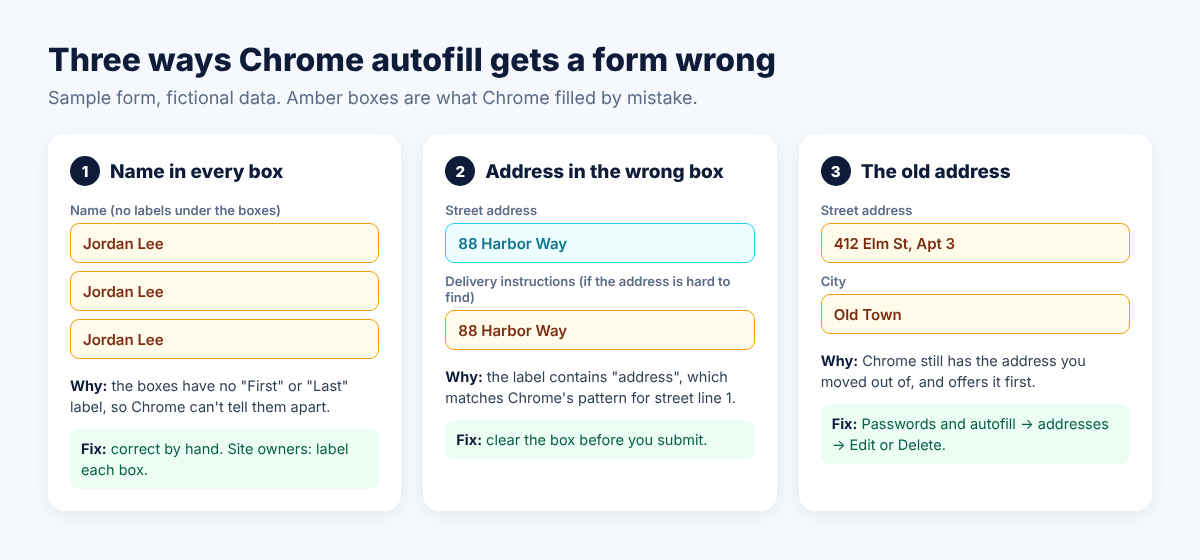
Usually the guess is right. When it isn't, it tends to be one of these:
- A label contains a trigger word. One developer found orders arriving with the first line of the address copied into "Delivery instructions". The label included the word "address", which matched Chrome's pattern for street line 1. Rewording the label without that word fixed it (Michael Bromley).
- Name boxes with no label of their own. A name split into First, Middle and Last, with no "First" or "Last" under each box, can get your full name in every one. In one Jotform support thread, the form owner had removed those sublabels, and putting them back fixed it. A MachForm forum post describes the same thing ending up as "John Smith John Smith John Smith".
- The saved entry is old. You moved, changed numbers or switched email, and Chrome still has the old version. Or it has two versions and offers the wrong one first.
Only the last one is something your settings can fix. The other two come from the form, and Chrome will make the same guess on that page every time you visit.
How to fix a wrong or old saved address in Chrome
If Chrome keeps offering an old address, phone or email, edit or delete the saved entry. On a computer (Google's steps):
- Click the three dots at the top right of Chrome, then Passwords and autofill.
- Open the section that holds your addresses. Depending on your Chrome version it may be called addresses or contact info.
- Next to the wrong entry, click the three dots and choose Edit to correct it or Delete to remove it.
That covers saved addresses. The other kind of suggestion, something you once typed into a box that Chrome now offers back, is form history. To remove one entry, start typing so the suggestion shows up, highlight it with the arrow keys and press Shift + Delete (on a Mac, Shift + Fn + Delete). To clear all of it, open the three dots, choose Delete browsing data, pick a time range, and tick Autofill form data under Advanced. That removes everything, not just the one bad entry.
If you'd rather Chrome stopped filling addresses altogether, switch off Save and fill addresses in the same settings section.
When the info is right but lands in the wrong field
If your saved address is correct and Chrome still drops it in the wrong boxes, no setting will help. Chrome reads that page the same way every time. Here's what you can do instead:
| What you see | Likely cause | What to do |
|---|---|---|
| Old address or phone offered first | Stale saved entry | Edit or delete it in Passwords and autofill |
| Full name in First, Middle and Last | The name boxes have no labels of their own | Fix by hand; tell the site if it's yours |
| Street address in a notes or instructions box | The label contains "address" or a similar word | Clear the box before you submit |
| A random old value in a custom box | Form history, not a saved address | Shift + Delete on that suggestion |
| Two tools fill the same box differently | Chrome and an extension both filling | Turn one off for that kind of data |
If you run the site, the fix is on your end: give every box its own label and set the right autocomplete value (given-name, family-name, address-line1). Chrome's DevTools has an Autofill panel that shows what Chrome thinks each field is. We walked through it in why Chrome autofill skips fields.
On our own computers we turned Chrome's address autofill off. EchoFill was already filling those fields, we didn't need both, and the two sometimes fought over the same box.
How to make a form fill the same way every time
A guess can be wrong. A recording of what you typed into one specific form isn't a guess. That's the idea behind EchoFill, a free extension for Chrome, Edge and Firefox that remembers a form and puts your answers back in the same boxes next time. Everything stays in your browser.
- Fill the form once by hand, correctly. Pay attention to the fields Chrome usually gets wrong.
- Click the EchoFill button, then Record this form. Name the profile something you'll recognize, like "Home address (new)". EchoFill never saves passwords, card numbers or Social Security numbers.
- Next time, click Autofill. EchoFill matches each field by its label, name and placeholder, the way you filled it. If you left the middle name empty, it stays empty.
- Check it. If anything filled wrong, Undo puts every field back in one click. When your details change, correct the field, click Record this form and choose Update an existing profile. From then on the profile has the new version.
You can keep separate profiles for separate versions of you: home and work address, or one per person if you share a computer. The free plan includes 3 profiles.
One catch if Chrome's autofill is still on: EchoFill fills only empty fields by default, so a box Chrome already filled wrong stays wrong. To let your recorded answer win, open the profile in Settings, expand Profile settings and turn on Overwrite fields that already have an answer.
EchoFill isn't perfect either. On a site you haven't recorded, it also matches by label, so a strangely labeled box can still get the wrong value. That's what Undo is for. It doesn't fill rich-text editors yet.
A 20-second check before you hit Submit
Whatever fills your forms, this catches almost every wrong autofill:
- Name: first, middle and last each hold one name, or nothing
- Address: it's your current one, and the unit or apartment number is right
- Phone and email: the ones you actually check now, not an old work address
- Notes, instructions and "anything else" boxes: empty unless you typed in them
- Anything legal or one-off, like dates, signatures and attestations: read it yourself
Manufacturing has a name for this habit: poka-yoke, or mistake-proofing. Set things up so the same error can't slip through twice. A recorded form plus a quick look before Submit gets you most of the way there.
Frequently asked questions
Why does Chrome autofill the wrong address?
Usually an old address is still saved in Chrome, or there are two and the old one comes first. Go to the three dots, Passwords and autofill, open the addresses section, and edit or delete the wrong entry. If the right address lands in the wrong boxes instead, the form's labels are confusing Chrome, and changing settings won't fix that.
How do I delete one wrong autofill suggestion in Chrome?
Start typing in the box so the suggestion appears, highlight it with the arrow keys, then press Shift + Delete (Shift + Fn + Delete on a Mac). Saved addresses are removed from the settings page instead. Clearing "Autofill form data" deletes all form history at once.
Why does Chrome put my full name in the first name field?
Chrome decides what a box is for from its label and name. When a form splits your name into several boxes without labeling each one, Chrome can put the full name in all of them. Fix the boxes by hand before you submit. If the form is yours, label each box and set autocomplete to given-name and family-name.
Will EchoFill and Chrome both fill the same field?
They can both try. EchoFill fills only empty fields by default, so it won't overwrite what Chrome already put there, right or wrong. Turn on "Overwrite fields that already have an answer" in a profile's settings if you want EchoFill's answer to win. If the two keep disagreeing on a form you use often, turn off Chrome's address filling and let the recorded version handle it.
One short email when we publish a new guide. No spam, unsubscribe anytime.