EchoFill
You click into the first box, Chrome offers your saved details, and you pick them. Name, email, phone and address pop in. Then you scroll down and everything else is still empty: the dropdowns, the checkboxes, the "Describe your request" box, the second page of the form. So you start typing anyway.
Since I started using EchoFill, that's become rare for me, at least on the forms I fill again and again. It still happens when I open a brand-new form that asks for something I haven't filled in before. I type those few fields by hand once, save the form as its own profile, and from then on it's easy.
This post covers the quick settings checks for when Chrome autofill isn't working at all, why it skips fields even when it is working, how to see what Chrome thinks each field is, and how to fill the fields it won't touch.
First, rule out the settings problems
If Chrome offers nothing at all, the cause is usually one of these. Check them in order:
- Address autofill is switched off. Go to Settings → Autofill and passwords → Addresses and more and make sure Save and fill addresses is on.
- There's nothing saved yet, or the saved entry is missing the part you need. On the same page, open your address and fill in phone and email too. Chrome can only offer what it has.
- You're in a different Chrome profile or a guest or Incognito window. Each profile keeps its own addresses.
- Another extension is answering first. Password managers often put their own menu on name and address fields. Try the form with that extension paused.
- The site asked browsers not to fill. Some forms mark fields with
autocomplete="off". Chrome often fills address fields anyway, but sites sometimes go further and rename fields to avoid autofill entirely, and then Chrome has nothing to recognize.
If Chrome offers your details on the first field but the rest of the form stays empty, the settings are fine. That's the next section.
Why Chrome skips fields even when autofill is on
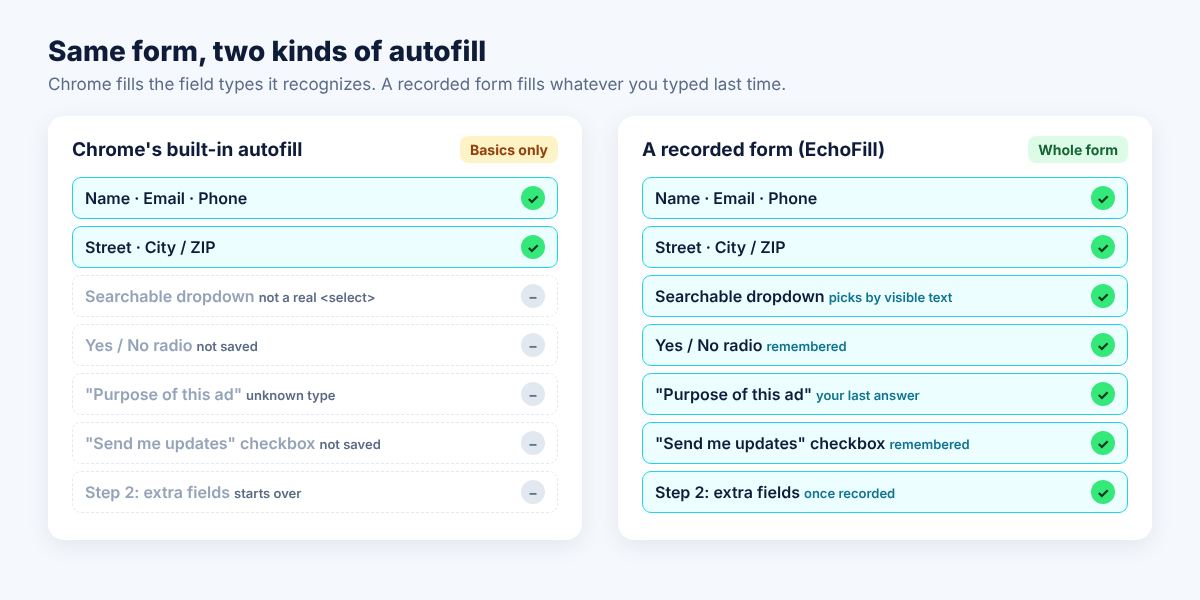
Chrome only fills field types it recognizes. Its autofill was built for a short list: names, email, phone, postal addresses and payment cards. For each field it looks at the label, the name and id and the autocomplete attribute, and guesses which of those types it is. If it can't place the field in that list, it leaves it alone.
Chrome's own developer blog shows the simplest case: a field whose only attributes are type=text and name=n300. Nothing in that tells Chrome what belongs there, so it can't use it for structured autofill. Real forms are full of fields like that.
Here's what usually gets skipped, and why:
| Field on the form | Chrome autofill | Why |
|---|---|---|
| Name, email, phone, street, city, ZIP | Usually fills | These are the types it was built for |
A field named n300 or field_7 with no clear label | Skips | Nothing tells Chrome what it is |
| "Describe your request", "Purpose of this ad", license numbers | Skips | Not on Chrome's list of types, whatever you typed before |
| Searchable or button-style dropdowns (Workday, React-Select) | Skips | They aren't real <select> menus, so there's nothing for Chrome to set |
| Checkboxes and radio buttons ("Yes, I'm authorized to work") | Skips | Chrome doesn't save yes/no answers |
| Step 2 of a multi-step form | Only if each field is recognized | Every page starts over |
| File uploads | Skips | No browser lets autofill attach a file |
None of this is a bug. Chrome's autofill is careful on purpose. A wrong guess in a payment form is worse than an empty box, so it only fills what it's sure about.
I think Chrome is right to be this cautious. Some of what goes into forms is sensitive. If Chrome filled the wrong thing, or something leaked, or a user made a mistake, the blame would land on Chrome. I get why it doesn't want to take on that liability.
How to see what Chrome thinks a field is
If you're curious why one specific field didn't fill, Chrome will show you. This is the same check a developer would run.
- On the form, press
Ctrl+Shift+I(Windows) orCmd+Option+I(Mac) to open DevTools. - Press
Ctrl+Shift+PorCmd+Shift+P, type autofill, and choose Show Autofill. - Click into the form and pick your saved address so Chrome fills it.
- The Autofill panel lists each field Chrome detected, the value it predicted, and the value it actually put in.
Fields that aren't in the list are the ones Chrome never recognized. Typing them into your saved address won't help, because the problem is the field, not your data.
Test your own autofill on one tricky form
We built a free Autofill Test Form with 18 of the field patterns that break form fillers: changing IDs, app-controlled inputs, button-style dropdowns, a second step that only appears after you click Next, and a few hard ones. It scores whatever tool you run on it, Chrome included.
Try Chrome first. With an address saved, click into Full name and pick your details, then read the scorecard. Chrome can only help with the kinds of fields in the first row of the table above, so don't be surprised by a low number. Then click Clear everything and try any form filler you're thinking of installing, EchoFill included. Each field on the page says why tools fail it, so you'll see exactly where yours falls short before you rely on it for a real application.
How to fill the fields Chrome won't, with EchoFill
The fix for "Chrome doesn't know what this field is" is a tool that doesn't need to know. EchoFill remembers what you typed into a specific form and puts it back next time. It's a free Chrome extension, and everything stays in your browser.
- Fill the form once by hand. Every field, including the dropdowns and checkboxes Chrome skipped.
- Click the EchoFill button → Record this form. Give the profile a name you'll recognize, like "Listing posts". EchoFill saves text, dropdown choices (including searchable and button-style menus), checkboxes and radio buttons. It never saves passwords, card numbers or Social Security numbers.
- Next time, click Autofill. EchoFill matches fields by their label, name and placeholder, so it still finds them when a site changes its hidden IDs. Leave Fill automatically next time checked and it fills as soon as the page opens on sites you approve.
- Check it and submit. If anything filled wrong, Undo puts every field back in one click. If you changed an answer, click Update to save the new version.
On the ad and listing forms I post over and over, every field fills. When a new site asks for something different, I fill it once by hand and record it as its own profile.
Two limits, so you're not surprised. EchoFill can't attach files, because no extension can. And it doesn't fill rich-text editors (the boxes with a bold and italic toolbar) yet. Fields inside embedded frames and web components aren't supported in the current version either.
Keep Chrome's autofill for what it's good at
Chrome's autofill is still the right tool for payment cards and passwords, where its security checks matter. EchoFill never records cards or passwords, so the two don't compete there.
Addresses are different. I turned Chrome's address autofill off. EchoFill was already filling those fields well, I didn't see the need for both, and sometimes the two conflicted. If you'd rather keep both on, EchoFill fills only empty fields by default, so it won't overwrite what Chrome already put in.
There's a longer side-by-side on the EchoFill vs. Chrome autofill page, and if job portals are your main pain, the Workday guide goes step by step.
Frequently asked questions
Why does Chrome autofill not work on some websites?
Usually because the site's fields don't tell Chrome what they are. Chrome only fills names, contact details, addresses and payment cards, and only when it can recognize the field from its label or attributes. Sites with unusual field names, custom dropdowns or multi-step forms get partial fills or none.
Why won't Chrome autofill fill dropdown menus?
Chrome can set a standard <select> menu when it recognizes the field, like State or Country. Many modern sites use custom menus built from buttons and lists instead, which Chrome can't operate. A form recorder like EchoFill opens the menu and picks the option by its visible text.
Can I add custom fields to Chrome autofill?
No. Chrome's saved addresses have a fixed set of fields, and there's no way to add your own, like a license number or a standard answer. For those you need an extension that records what you typed on the form itself.
Does autocomplete="off" stop Chrome from autofilling?
Not reliably. Chrome often ignores it on address fields, because users want those filled. That's why some sites rename fields instead, which also stops Chrome from recognizing them.
Should I turn off Chrome autofill if I use a form filler?
You don't have to. Keep Chrome's password and payment card autofill either way. For addresses, it's personal preference: I switched Chrome's address autofill off because EchoFill already filled those fields and the two sometimes conflicted. If you keep both, EchoFill only fills fields that are still empty.
Is it safe to use a form filler extension?
It depends on where the extension keeps your data. Check whether it needs an account, uploads what you type or sends it to an AI service. EchoFill stores everything locally in your browser with no account, and never records passwords, card numbers or Social Security numbers.
One short email when we publish a new guide. No spam, unsubscribe anytime.