EchoFill
You're halfway through a long government form. It asks for a document number you don't know by heart, so you go and find it. When you come back and click Next, the page says your session has expired. Everything on that page is gone, and some sites send you back to step one.
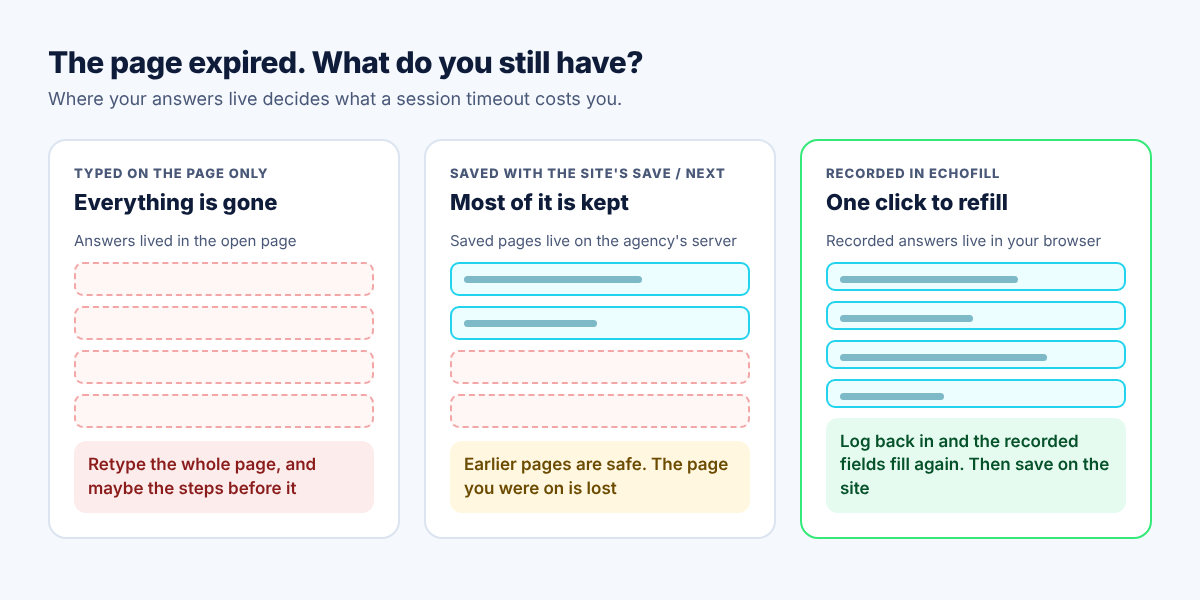
The short answer: a government form times out because the site ends your session after a stretch with no activity, and on many sites typing doesn't count, only page loads do. Anything on the unsaved page is lost. The site's own Save or Next button protects the pages you've finished. Recording your answers in a form filler protects the page you're on, so a timeout costs a click instead of a retype.
It happens on visa applications, tax and benefits portals, DMV renewals and permit forms, and it always seems to hit on the longest page. Below: why these forms time out, which of the usual fixes keep your data, what's safe to save, and how to set things up so a timeout doesn't cost you twenty minutes.
Why do government forms time out so fast?
Most government sites end your session after a short period of inactivity, for security. A form full of your address, date of birth and passport number shouldn't sit open on a library computer all afternoon. The catch is that "inactivity" often means "no page loads", not "no typing". You can type for 25 minutes on one long page, and to the server you've been idle the whole time.
The US visa application (DS-160) is a well-known example. The official site says it "will time out after 20 minutes of inactivity, and you will lose all unsaved information" (CEAC). The same page tells you to save your application often and to write down the Application ID shown at the top right, because you need it to get back in if you close the browser.
Sites also crash or slow to a crawl near deadlines. The defense is the same: save often, so less of your work lives only in the open page.
What each fix actually protects
There are four common ways to protect a long form. They protect different things, and none of them covers everything.
| What you do | What survives a timeout | What it doesn't cover |
|---|---|---|
| Click the site's Save or Next often | Every page you saved, on the agency's server | The page you were typing on when it expired |
| Draft long answers in a notes app first | Whatever you wrote in the note | Dropdowns, dates and checkboxes. You still re-enter each one |
| Rely on Chrome's built-in autofill | Name, address, phone, email | Case numbers, household details, custom dropdowns, most other fields |
| Record the form with EchoFill | Every recorded answer, in your own browser | A new answer you haven't recorded yet, passwords and SSNs |
Use the site's own save button no matter what else you do. It's the only option that keeps your progress on the agency's side, so you can finish another day or on another computer.
What we'd never save in any autofill tool
Some answers are fine to reuse. Others aren't. EchoFill never records passwords, card numbers or Social Security numbers, even if they're on the page when you click Record. Other ID numbers, like a passport or driver's license number, are ordinary text fields to EchoFill, so whether you keep them is your call.
A simple way to decide:
- Fine to save: name, address, phone, email, date of birth, employer, school, household members' names, and the "how did you hear about us" kind of answer.
- Think first: passport, driver's license and case numbers. They're handy to refill, and they're also exactly what an identity thief wants. If you'd rather not keep one, open Settings, pick the profile and click the ✕ next to that answer.
- Never reuse without reading: answers that change, like income, travel dates, your current employer, and the declarations at the end ("I certify that…"). Answer those fresh every time.
Your profiles stay in your browser's storage on your computer. There's no account and nothing is sent to us. Pro's optional sync uses your browser's own sync and is off unless you turn it on. That protects you from a company breach, but not from someone using your unlocked laptop. On a shared or public computer, don't record official forms at all.
How to stop losing data when a government form times out
The idea: get your answers out of the page and into your browser before the session has a chance to expire.
- Fill the first page normally. Use your real documents and take your time.
- Click the EchoFill button, then Record this form, before you click Next. Name the profile after the form, like "DMV renewal" or "Household details". You can record a half-finished page; EchoFill saves whatever is filled in.
- Tick Fill automatically next time and allow the site when your browser asks.
- Keep going. On a site you've approved, EchoFill also saves new answers you type on later pages as you go, and a small notice tells you how many it saved.
- If the session expires, sign back in and open the form again. EchoFill fills what it knows as soon as the page loads. It only fills empty boxes, so nothing you've already typed gets replaced.
- Check what filled. If anything looks wrong, click Undo and the page goes back to how it was.
Two settings help on slow government sites. If the form loads its boxes a second or two after the page appears, set Wait before filling to 1 or 2 seconds under the profile's Profile settings. And because EchoFill never changes an answer it has already saved, update a changed answer yourself: click Record this form and choose Update an existing profile, or edit the answer in Settings.
There's more on this setup on our government and civic forms page.
Habits that save you on any long form
These work with or without a form filler:
- Find your documents first. Most timeouts happen while you're hunting for a number. Put your passport, license, last year's tax return and any case numbers on the desk before you start.
- Save on every page. If there's a Save button, use it each time. If there's an application ID, write it down the moment it appears.
- Don't leave a page sitting. Need a break? Click Next or Save first.
- Stick to one tab. Opening the same application in two tabs can confuse some sites and end both sessions.
- Read the last page fresh. The certification and signature steps are yours to answer. EchoFill fills fields but never submits anything; you press Submit yourself.
If you only take one thing from this: put your documents on the desk before you open the form. A deadline form is the worst place to find out how short the timeout is.
Frequently asked questions
Can I recover a government form after the session timed out?
Usually not from the page itself. Once the server ends your session, the answers on the unsaved page are gone, and pressing Back rarely brings them back. What you can get back is anything you saved with the site's Save button or recorded in a form filler beforehand.
Why does the DS-160 keep timing out?
The official site times you out after 20 minutes of inactivity. Time spent typing on one page may not count as activity, so click Next or Save often, write down your Application ID, and gather your passport and travel details before you start.
Is it safe to autofill government forms?
For stable details like your name and address, yes, if the tool keeps your data on your device and you check every field. Read income, travel dates and the final declarations yourself every time. EchoFill fills fields but never submits a form for you.
Will autofill mess up a government form?
It can if a saved answer is out of date, which is why you should look over every filled field before clicking Next. EchoFill outlines what it filled, and Undo puts the page back the way it was in one click.
One short email when we publish a new guide. No spam, unsubscribe anytime.